
When you’re new to HTML, block and inline elements can feel like one of those coding details that should be simple, but somehow keeps getting confusing.
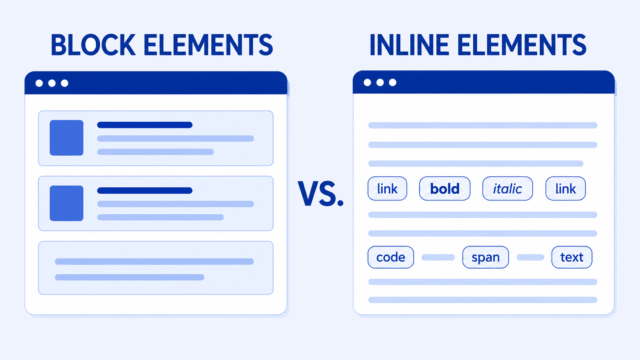
The main idea is simple. Block elements are used to build the structure of a page. Inline elements are used inside text and other content.
A block element usually starts on a new line. An inline element usually stays in the same line. That one difference explains a lot of what you see when HTML shows up in the browser.
This matters because CSS behaves differently depending on what kind of element you’re styling. If a <div> starts on a new line and a <span> does not, that is not random. It is the browser following each element’s default display behavior.
The Quick Difference
A block element starts on a new line and usually takes the full available width. An inline element stays within the line of content and only takes the space it needs.
That is the beginner version. You can go very deep into the technical details later, but this is enough to start making sense of the page.
If you add two paragraphs to a page, they stack vertically. Each paragraph starts on a new line.
<p>This is the first paragraph.</p>
<p>This is the second paragraph.</p>
If you add a link inside a paragraph, the link stays inside the sentence.
<p>This paragraph has a <a href="#">link</a> inside it.</p>The paragraphs are block elements. The link is an inline element. They have different jobs.
Block Elements Are for Structure
Block elements help create the larger shape of a web page.
You use block elements for things like sections, headings, paragraphs, lists, cards, wrappers, and other page pieces that need their own space.
<section>can group related content.<h2>can introduce a new section.<p>can hold a paragraph of text.<ul>can hold a list.<div>can create a general-purpose box.
Here is a small example:
<section>
    <h2>My Project</h2>
    <p>This section has a heading and paragraph.</p>
</section>
The <section>, <h2>, and <p> elements are all block elements. They help create the structure of the page.
This connects directly to the HTML block elements lesson. Block elements are one of the main ways HTML organizes content into readable sections.
Inline Elements Are for Content Inside Text
Inline elements are different. They usually live inside a line of content instead of creating a new section on the page.
You use inline elements for things like links, emphasized words, bold text, small spans of styled text, and images that sit inside content.
<a>creates a link.<strong>gives text strong importance.<em>gives text emphasis.<span>targets a small piece of text or content.<img>adds an image, though images have some special sizing behavior.
Here is a simple example:
<p>This is a <a href="#">link</a> inside a paragraph.</p>The paragraph creates the larger text block. The link sits inside that paragraph. It does not break the sentence into a new section.
The HTML inline elements lesson goes into this part of HTML in more detail.
Why Does a Div Start on a New Line?
A <div> starts on a new line because it is a block element by default.
A <div> is a general-purpose box. It does not mean heading, paragraph, link, or image. It is used when you need to group things together.
<div class="card">
    <h2>My Card</h2>
    <p>This text belongs inside the card.</p>
</div>
That <div> creates a box around the heading and paragraph. It is not meant to behave like one word inside a sentence. It is meant to create a larger piece of page structure.
This is why <div> elements are often used for cards, wrappers, columns, menus, and sections. They give CSS something to style and position.
If you’re still getting comfortable with this idea, review HTML boxes. A <div> is one of the clearest examples of a box in HTML.
Why Does Span Stay in the Same Line?
A <span> stays in the same line because it is inline by default.
A <span> is useful when you want to target a small piece of content without creating a new section.
<p>I am learning <span class="highlight-word">HTML</span> and CSS.</p>The <span> wraps one word. The sentence still reads like one sentence. The span just gives CSS a way to style that word.
.highlight-word {
    background: yellow;
}
That is the kind of job <span> is good at. It marks a small piece inside other content.
A <span> is not usually the right choice for building a card, wrapper, sidebar, or section. For those larger page pieces, you usually want a block element.
Div vs Span
The easiest pair to compare is <div> and <span>.
- Use a
<div>when you need a box that groups content. - Use a
<span>when you need to target a small piece inside content.
Here is a simple way to think about it.
A <div> is like putting things into a container. A <span> is like circling one word with a pencil.
They are both useful. They just solve different problems.
How CSS Changes the Behavior
HTML elements have default behavior, but CSS can change how they behave.
The CSS property that controls this is display.
.box {
    display: block;
}

.word {
    display: inline;
}
There are several display values you will see as you keep learning.
display: block;makes an element behave like a block.display: inline;makes an element behave like inline content.display: inline-block;lets an element stay in line but accept sizing more like a block.display: flex;gives you a powerful way to arrange child elements.display: grid;gives you another powerful way to create layouts.
You do not need to learn all of these at once. For now, the important thing is that the browser gives elements default behavior, and CSS can change that behavior.
The CSS display lesson is the next place to go when you want to understand this more clearly.
Why Width and Height Can Feel Strange
One reason beginners get frustrated is that CSS size rules do not always behave the same way on block and inline elements.
For example, a block element can usually accept width, height, margin, and padding in the way you expect.
.card {
    width: 300px;
    padding: 20px;
    margin-bottom: 20px;
}
That works naturally on something like a <div>.
Inline elements are different. They are meant to flow with text, so width and height do not always work the way beginners expect.
This is one reason inline-block exists. It lets something stay in line while also acting more like a box you can size.
This also connects to the CSS box model, which explains how content, padding, border, and margin affect the space an element takes up.
Beginner Mistakes to Avoid
Most beginner mistakes here come from using the wrong kind of element for the job.
- Do not use
<br>over and over to create page layout. A line break is for a line break, not for building sections. - Do not use
<span>when a<div>,<p>, or<section>would describe the content more clearly. - Do not expect width and height to work normally on every inline element.
- Do not build everything with
<div>when a more meaningful element would work better. - Do not forget that HTML should describe the content, not just create boxes for CSS.
This last point matters. A <div> is useful, but it does not have meaning by itself. If something is really a paragraph, use a <p>. If something is really a list, use a list. If something is really a link, use a link.
A Simple Rule for Beginners
Here is the rule I would start with:
Use block elements to build page structure. Use inline elements inside text or small pieces of content. Use CSS display only when you understand the default behavior you are changing.
You do not need to memorize every block and inline element right away. It is more useful to understand the pattern.
When an element starts on a new line, ask yourself if it is acting like a block. When an element stays inside a sentence, ask yourself if it is acting inline.
Try This Yourself
The best way to understand this is to test it in a small example.
<div class="box">This is a div.</div>
<div class="box">This is another div.</div>

<p>This paragraph has a <span class="word">span</span> inside it.</p>
Then add a little CSS so you can see what is happening:
.box {
    background: #eee;
    padding: 12px;
    margin-bottom: 12px;
}

.word {
    background: yellow;
}
The two <div> elements stack. The <span> stays inside the sentence.
That is the practical difference. You can test this in the code sandbox and change one thing at a time.
What to Learn Next
Once block and inline elements make sense, the next lessons will be much easier to follow.
- HTML block elements explain the larger structural elements you use to build a page.
- HTML inline elements explain the smaller elements that sit inside text and content.
- HTML boxes explain how web pages are built from nested pieces of content.
- CSS display explains how CSS can change the way elements behave in layout.
- The CSS box model explains how spacing and sizing work around elements.
For now, keep the main idea simple. Block elements shape the page. Inline elements live inside the content. CSS can change both, but it is much easier to use CSS when you understand what the browser is doing first.