
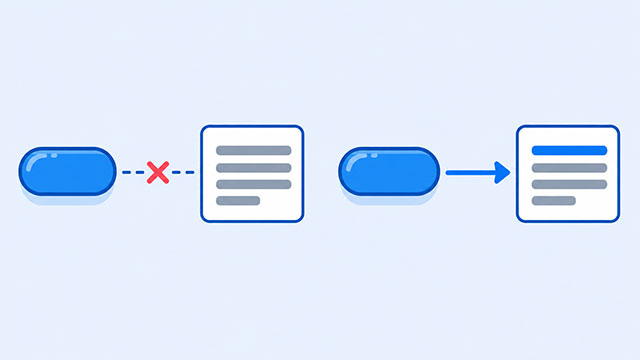
Your button appears on the page, but clicking it does not change anything. A button can be visible and pressable without being connected to the change you expect. Check what the button should do, then compare the button, the page content, and the JavaScript that joins them.
The simplest test is to make one click change one line of text. If that works, you have a visible result to compare with your own page.
A Visible Button Is Only the Starting Point
HTML puts the button on the page. Its label tells someone what to expect, but the words “Change Message” do not make the message change. For that page action, JavaScript needs to respond to the click.
Think of it as a short connection: button → click → change. If the button is there but the connection is missing, pressing it may leave the page looking exactly the same. The HTML Buttons lesson explains the button’s role before an action is added.
A button inside a form has a different possible job: it may submit the form. Here we use type="button" so the example is about changing text on the current page.
Compare a Small Working Example
This example begins with a button and a paragraph. The paragraph says “Waiting for a click.” After you press the button, it says “The button worked!”
<button type="button" id="changeButton">Change Message</button>
<p id="message">Waiting for a click.</p>

<script>
document.querySelector('#changeButton').addEventListener('click', () => {
    document.querySelector('#message').textContent = 'The button worked!';
});
</script>
The first line makes the button. The second line gives the page some text to change. The script sits after those elements, so they are already present when it looks for them.
The JavaScript finds #changeButton, waits for its click, then changes the text inside #message. These names come from the HTML id values. They must match for this example to reach the intended elements.
This is the same small click-and-change pattern used in the Click Button with Javascript lesson. The useful difference here is what to check when your version does not show the expected result.
Check Where the Connection Breaks
Start with the page in front of you. Save your changes, refresh the page, and compare your code with the working example one piece at a time.
- Check the button. Does the button’s
idmatch the name in the firstquerySelector()? In the example, both usechangeButton. Even a different capital letter means the names no longer match. - Check the text to change. Does the paragraph’s
idmatch the name in the secondquerySelector()? In the example, both usemessage. If your code points to a different element, the text you are watching may stay the same. - Check the JavaScript’s place. Is the script actually included on this page? For a small inline example like this one, put the
<script>block after the button and paragraph. A script that runs before those elements appear cannot attach this click action to them.
If the page reloads when you click, check whether the button is inside a form. A button in a form can submit it. Use type="button" when this particular button is meant only to change something on the current page.
Once the working message changes, try replacing only the final sentence inside the quotation marks. You should see your new sentence after the next click. Then move that same check to your own button and page text.
What to Learn Next
When the button and message are connected, these lessons help you understand each part of the example more clearly.
- Click Button with Javascript shows the click-and-change pattern step by step.
- HTML Buttons explains what the button element adds to a page.
- Change Text with Javascript focuses on changing visible text before adding a click.