
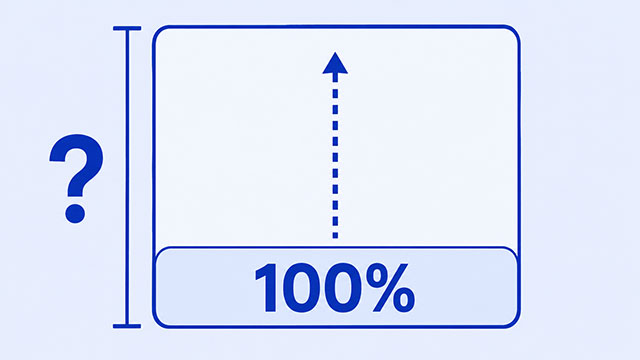
If a box with height: 100% stays as short as its text, the CSS may be valid. The browser usually needs a known height on the box around it before it can calculate what 100% should be. By the end of this article, you’ll know what the percentage measures and which simple fix matches your goal.
The key question is not just, “Why isn’t the height working?” It is, “100% of what?”
A percentage needs something to measure. For height, that measurement usually comes from the box around your element. If that outer box has no set height, the inner box does not have a clear number to use.
What Does height: 100% Measure?
Imagine a small box inside a larger box. If the larger box is 300 pixels tall, the browser can easily work out the inner box’s percentage height.
In this example, the HTML creates one box inside another:
<div class="outer">
    <div class="inner">I fill the outer box.</div>
</div>
The CSS gives the outer box a known height and tells the inner box to use all of it:
.outer {
    height: 300px;
    border: 3px solid #315c8a;
}

.inner {
    height: 100%;
    background: #cfe8ff;
}
Here, 100% means 100% of 300 pixels. The blue inner box fills the height inside the bordered outer box.
CSS calls the box used for this calculation the containing block. In this simple example, you can think of it as the parent box directly around the inner box.
The important part is that height: 100% does not automatically mean the full browser window. It means the full height of the box being used as the reference.
Why Does the Box Stay as Short as Its Content?
Now remove the height from the outer box:
.outer {
    border: 3px solid #315c8a;
}

.inner {
    height: 100%;
    background: #cfe8ff;
}
The outer box now uses its normal height. Its normal height is based on the content inside it, so it grows just enough to hold the sentence.
That leaves the inner box with no fixed vertical measurement for its percentage. For an ordinary box in this situation, the percentage height behaves like an automatic height. The inner box stays around its content instead of becoming tall.
This can feel strange because width: 100% often seems to work immediately. A block box such as a div normally has horizontal space available from the box around it. Page height works differently: it usually grows as more content is added.
So the browser usually has an easy width to measure, but it may not have a known height to measure.
Fix 1: Give the Parent a Definite Height
Use this fix when the inner box should match a particular parent.
The HTML can stay small:
<div class="card">
    <div class="card-message">This area matches the card height.</div>
</div>
Give the parent a height the browser can measure, then give the child 100% of that height:
.card {
    height: 300px;
    border: 3px solid #5a3d8a;
}

.card-message {
    height: 100%;
    background: #e8dcff;
}
The parent’s 300px height supplies the measurement. The child can now use all of that height.
For a box nested inside several other boxes, each percentage may depend on a height farther up the page. If one of those boxes has an automatic height, the measurement chain can stop.
You do not need to memorize a complicated rule. Start by looking at the box directly around the one you are styling. Ask whether that parent has a clear, set height.
Fix 2: Use the Browser Window as the Reference
Sometimes you do not want to match a parent box. You want a welcome section or hero area to be at least as tall as the visible browser window.
In that case, use a viewport unit. The viewport is the part of the page visible in the browser. One vh is one percent of its height, so 100vh is the full viewport height.
Here is a simple section:
<section class="welcome">
    <h2>Welcome</h2>
    <p>This section is at least as tall as the browser window.</p>
</section>
The CSS uses the browser window instead of a parent height:
body {
    margin: 0;
}

.welcome {
    min-height: 100vh;
    background: #dff5e3;
}
Using min-height gives the section a minimum starting height. If you add more content than fits on one screen, the section can still grow.
This is a different goal from matching a parent. Use height: 100% when you mean all of a known box. Use a viewport unit when you mean a share of the browser window.
A Quick Checklist for Percentage Height Problems
When a percentage height produces the wrong visible result, change one thing at a time. This keeps the cause easy to see.
- Name the goal. Should the box match its parent, or should it fill the browser window?
- Check the parent. If the child uses a percentage, look for a set height on the box around it.
- Check boxes in between. A nested percentage can lose its height reference when an intermediate box grows only from its content.
- Choose the reference. Set a definite parent height for parent-relative sizing, or use a viewport unit for window-relative sizing.
- Look at the page again. Refresh after each change and check whether the colored area now reaches the intended height.
The most useful habit is to stop treating 100% as a magic instruction. Always ask which box provides the number behind the percentage.
What to Learn Next
Now that the missing height reference makes sense, these lessons can help you connect that idea to the rest of the page.
- CSS size properties explain how width, height, max-width, and min-height shape a box.
- HTML boxes show how larger page pieces can contain smaller ones.
- The CSS box model connects a box’s content area with its padding, border, and margin.