
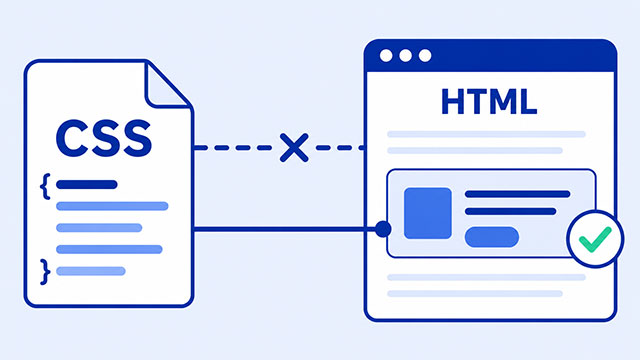
If your CSS is not changing your HTML page, the problem is usually one of five things: the CSS file did not load, the selector did not match the HTML, another rule won, the CSS has a small error, or the browser is showing an old version of the page.
That can feel frustrating because the code may look right at first glance. The useful move is to test one possibility at a time instead of changing random things and hoping one of them works.
Start with the simplest question: can the browser even see your CSS file? Then check whether your CSS points to the right HTML element. After that, check whether the cascade chose a different rule instead.
First Check Whether the CSS File Is Loading
External CSS only works when your HTML file correctly points to your CSS file. The browser does not guess where your stylesheet is. It follows the file path you give it.
Here is a minimal HTML page with a correct stylesheet link:
<!doctype html>
<html lang="en">
<head>
    <meta charset="UTF-8">
    <title>My Page</title>
    <link rel="stylesheet" href="style.css">
</head>
<body>
    <h1>Hello</h1>
</body>
</html>
The important part is the link element. It uses rel="stylesheet" to say what kind of file this is, and it uses href="style.css" to say where the CSS file is.
A common beginner mistake is using src instead of href:
<!-- This is wrong for a CSS stylesheet link -->
<link rel="stylesheet" src="style.css">

<!-- This is the correct version -->
<link rel="stylesheet" href="style.css">
The src attribute is used for some things, like images and scripts. A stylesheet link needs href, not src.
If your CSS file is inside a folder, the path must include that folder:
<link rel="stylesheet" href="css/style.css">That tells the browser to look for a folder named css, then a file named style.css inside it. If the folder or filename is different, the stylesheet will not load.
Check Whether Your Selector Matches the HTML
If the CSS file is loading, the next question is whether the browser can find the element you are trying to style. A CSS selector is the part of the rule that points to the HTML.
In this example, the CSS does not match the HTML:
<button class="btn">Start</button>.button {
background: blue;
color: white;
}The HTML says class="btn", but the CSS looks for .button. Those names are not the same, so the rule does not apply.
The fix is to make the class name match:
<button class="btn">Start</button>.btn {
background: blue;
color: white;
}Small differences matter. .btn, .button, and .buttons are different selectors. The browser will not treat them as close enough.
Also check the symbol at the beginning. A class selector starts with a dot. An ID selector starts with a hash mark. An element selector uses the element name by itself.
.cardtargetsclass="card".#herotargetsid="hero".ptargets paragraph elements.
If this part feels unclear, the CSS Selectors lesson explains how CSS finds HTML elements in more detail.
Check Whether Another CSS Rule Is Winning
Sometimes your selector is correct, but the browser chooses a different rule for the same property. That decision process is called the CSS cascade.
Here is a simple example:
p {
    color: blue;
}

p {
    color: green;
}
Both rules target paragraphs. Both set the same property. Because they have the same strength, the later rule wins and the paragraph text becomes green.
Another rule can also win because it is more specific. A class selector usually beats an element selector when they compete for the same property.
<p class="intro">Welcome to my page.</p>p {
color: blue;
}
.intro {
color: red;
}The paragraph becomes red because .intro points more specifically to that paragraph than p does. The browser is not ignoring your CSS. It is choosing the winning rule.
The CSS Cascade lesson is the best next step when your CSS appears in the browser but gets crossed out or overridden.
Check for CSS Syntax Errors and Invalid Values
CSS does not always stop with a dramatic error message. If one declaration is broken or a value is invalid, the browser may ignore that one part and keep reading the rest.
For example, this rule has a small syntax problem:
.notice {
    color red;
    background: yellow;
}
The color line is missing a colon, so that declaration is invalid. The background line can still work because it is written correctly.
Here is the corrected version:
.notice {
    color: red;
    background: yellow;
}
Also check values. A value like colour: red; will not work because the CSS property is color. A value like display: invisible; will not work because invisible is not a valid value for display.
When one line does not work, look closely for a small typo, missing colon, missing semicolon, misspelled property, or value that CSS does not understand.
Refresh the Browser and Inspect the Page
If the code looks right, make sure you are looking at the newest version of the page. Save both files, then refresh the browser. If nothing changes, you may be editing one file while the browser is showing another file.
Browser tools can help you stop guessing. Right-click the element on the page and choose Inspect. Then look at the styles shown for that element.
- If your rule is missing, the CSS file may not be loading or the selector may not match.
- If your rule appears but is crossed out, another rule is probably winning.
- If your CSS file is not listed or cannot be opened from the browser, the file path may be wrong.
You do not need to understand every part of browser developer tools right away. For this problem, use them to answer one question: can the browser see the rule you expected to work?
If you are working with local files, the Local Development lesson can help you check that you are saving, opening, and refreshing the right files.
A Beginner Checklist for CSS That Is Not Applying
Use this checklist in order. The order matters because it starts with the easiest things to prove.
- Save both files. Save the HTML file and the CSS file before refreshing.
- Check the stylesheet link. Make sure the HTML uses
<link rel="stylesheet" href="style.css">. - Check the file path. If the CSS file is in a folder, include the folder name.
- Check the filename. Match spelling, hyphens, underscores, and the
.cssending. - Check the selector. Make sure the class, ID, or element name matches the HTML.
- Check for another rule. If your style is crossed out in developer tools, the cascade chose a different rule.
- Check the CSS line. Look for a missing colon, misspelled property, or invalid value.
- Refresh the browser. If needed, try a hard refresh or open the page in a private window.
If you are just setting up your first stylesheet, compare your files with the Base CSS Template. A known working starting point makes debugging much easier.
What to Learn Next
Once you know which part failed, the next step is learning the idea behind that part of the problem.
- CSS Cascade explains why one CSS rule can win over another.
- CSS Selectors explains how CSS finds the HTML elements you want to style.
- Base CSS Template gives you a clean starting stylesheet to compare against your own files.
- Local Development helps you understand the local files-and-browser workflow used while building a page.