
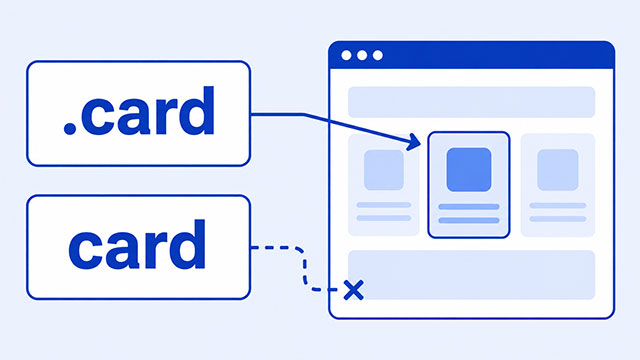
If your CSS selector is not working, the first thing to check is whether it actually points to the HTML element you want. If it does point to the right element, the next question is whether another CSS rule is winning instead.
A selector is the part of a CSS rule that tells the browser which element to style. In this rule, .card is the selector:
.card {
    background: yellow;
}
When that rule seems to do nothing, there are usually three possible reasons. The selector does not match the HTML. The selector matches, but another rule wins. Or the property changes something that is not easy to see.
The fastest way forward is to debug in that order. First prove that the selector matches. Then check the CSS cascade, which is how the browser decides which matching rule gets used. Then look at the property itself.
First Check Whether the Selector Matches the HTML
Start with the HTML. A selector can only style an element if it describes that element correctly.
Here is a simple element:
<div class="card">
    <h2>My Project</h2>
    <p>This is a short description.</p>
</div>
To target that div by its class, the selector needs a dot before the class name:
.card {
    border: 2px solid blue;
}
The dot matters. Without it, card means an HTML element named <card>. The browser will look for a different kind of element, not for class="card".
These three selectors all mean different things:
cardtargets an element named<card>..cardtargets any element withclass="card".div.cardtargets adivthat also hasclass="card".
This is why the CSS selectors lesson starts with element, class, and ID selectors. Most selector problems begin with one of those basic targeting rules.
Also check spelling. CSS does not know what you meant. If the HTML says class="project-card" and the CSS says .projectcard, those are two different names.
Then Check Whether Another Rule Is Winning
Sometimes the selector is working, but another rule is stronger. That can make the correct selector look broken.
In this example, both rules match the button:
<a class="button" href="#">Read More</a>.button {
background: blue;
}
.hero .button {
background: green;
}If that button sits inside an element with class="hero", the green background will win. The selector .hero .button is more specific because it describes a narrower situation.
This is called specificity. It is one part of the cascade. When more than one rule tries to set the same property on the same element, the browser has to choose which value to apply.
Order matters too. If two matching selectors have the same strength, the rule that appears later usually wins.
.button {
    background: blue;
}

.button {
    background: green;
}
Here, the second rule wins because both selectors are the same. The browser reaches the green rule later, so green becomes the final background.
This is the key distinction: a selector can match perfectly and still not control the final result. If DevTools shows your property crossed out, your selector probably matched, but another rule won the decision.
Watch for Selector Relationship Mistakes
Some selectors do not just name an element. They describe where an element sits compared with another element.
That makes them useful, but it also makes them easier to misread.
For example, this selector targets paragraphs that are somewhere inside an element with class="card":
.card p {
    color: purple;
}
This selector is stricter. It targets only paragraphs that are direct children of .card:
.card > p {
    color: purple;
}
That small > symbol changes the meaning. If another element sits between the card and the paragraph, .card > p will not match.
<div class="card">
    <div>
        <p>This paragraph is not a direct child of .card.</p>
    </div>
</div>
In that HTML, the paragraph is inside the card, but it is not directly inside the card. The extra div in the middle changes the element relationship.
Sibling selectors have a similar rule. + and ~ only look for elements that come after another element at the same level. They do not move upward to a parent element.
That matters with hover rules too. If you write a hover selector and expect it to style a parent, the selector may be asking CSS to move in a direction it does not normally move. For a beginner project, it is usually simpler to style the hovered element itself or another element placed after it.
Use DevTools to Test the Selector
You do not have to guess. Browser developer tools can show whether the browser sees your selector.
Use this order when a selector seems broken:
- Inspect the element you expected to change.
- Look in the styles panel for your CSS rule.
- If the rule is missing, simplify the selector until it appears.
- If the rule appears but the property is crossed out, another rule is winning.
- Add a temporary property such as
outline: 3px solid red;to make the matched element obvious.
The temporary outline is useful because it does not change the element’s size. It gives you a bright visual clue while you debug the matched element.
If a simpler selector works, build back up slowly. Try .card. Then try .card p. Then try the longer selector you wanted. The step where it stops working usually reveals the wrong assumption.
You can also ask an AI tutor to compare your HTML and CSS, but use it as a helper, not as a replacement for checking the page. Ask it to explain which element the selector matches, then confirm that answer in DevTools.
Common Selector Problems and What They Mean
When a selector is not working, the symptom often points to the next check.
| Symptom | Likely cause | First check |
|---|---|---|
.card does nothing | The HTML may not have class="card" | Check the exact class spelling in the HTML |
card does nothing | The selector is looking for a <card> element | Add a dot if you mean a class selector |
#main does nothing | The HTML may not have id="main" | Check the exact ID value |
| The rule appears crossed out | Another matching rule is winning | Check specificity and rule order |
| A child selector does not match | The element may not be a direct child | Compare > with a space |
| A sibling selector does not match | The target may not come after the first element at the same level | Check the HTML order and nesting |
| The color changes but layout does not | The selector may match, but the chosen property may not affect layout | Test with a temporary outline |
The goal is not to memorize every possible selector mistake. The goal is to ask a better first question: is this a matching problem, a cascade problem, or a property problem?
A Simple Debugging Example
Suppose this HTML is on your page:
<section class="profile">
    <h2>About Me</h2>
    <p class="bio">I am learning CSS.</p>
</section>
And this CSS does not seem to work:
.profile > .bio {
    color: red;
}
In this exact HTML, the selector should match. The paragraph with class="bio" is a direct child of the element with class="profile".
So if the text is not red, your next move is not to rewrite the selector. Your next move is to check whether another rule is winning.
.profile > .bio {
    color: red;
}

p.bio {
    color: black;
}
Both selectors match the same paragraph. If they have the same strength, the later rule can win. In DevTools, the losing value will often be crossed out, which tells you this is not a matching problem.
This is a small example, but it teaches the habit that matters. Do not change five things at once. Check the selector, check the cascade, then check the property.
What to Learn Next
Once you can tell whether a selector matches, CSS becomes much easier to reason about. These lessons are the best next steps.
- CSS selectors explains the basic selector types and relationship selectors in more detail.
- CSS cascade shows how the browser chooses between matching rules.
- HTML attributes helps connect class and ID values in your HTML to the selectors you write in CSS.
- CSS hover is useful when the selector depends on the mouse being over an element.