
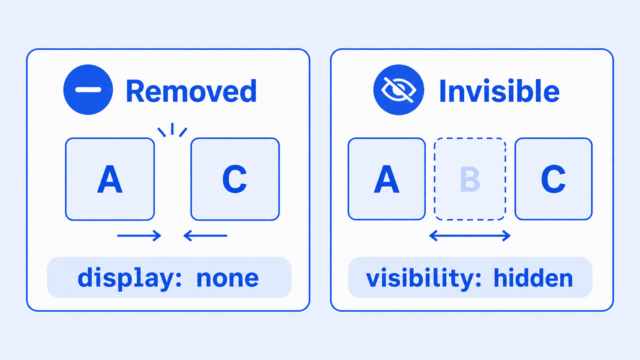
The difference between display: none and visibility: hidden is simple: display: none hides the element and removes its space from the page, while visibility: hidden hides the element but keeps its space.
That one difference explains most of the confusion. Both CSS rules can make something disappear, but they do not make it disappear in the same layout way.
If you use the wrong one, you may see a mysterious blank gap. Or the opposite may happen: nearby content may move into the space you expected to stay reserved.
The useful mental model is this: display: none means the box is gone. visibility: hidden means the box is invisible.
The Short Answer
Every visible HTML element takes up some kind of box-shaped space on the page. CSS can change whether that box appears and whether it still affects layout.
| CSS rule | Visible? | Takes up space? | Common use |
|---|---|---|---|
display: none | No | No | Hide something completely until it is needed |
visibility: hidden | No | Yes | Hide something while keeping the layout still |
Use display: none when the hidden element should not take up room. Use visibility: hidden when the hidden element should still reserve its space.
This connects directly to the CSS Presence lesson, which introduces the main CSS tools for controlling whether elements appear, disappear, fade, or stack on top of each other.
A Simple Example
Imagine three boxes sitting next to each other. The middle box is the one you want to hide.
<div class="row">
    <div class="box">One</div>
    <div class="box hidden">Two</div>
    <div class="box">Three</div>
</div>
Here is the basic CSS for the row and boxes. This part just makes the example easy to see.
.row {
    display: flex;
    gap: 12px;
}

.box {
    padding: 20px;
    background: #e8f0ff;
    border: 1px solid #8aa8d8;
}
Now try hiding the middle box with display: none.
.hidden {
    display: none;
}
With display: none, box Two is hidden and its layout space disappears. Box Three moves next to box One because the browser lays out the row as if box Two is not there.
Now change the hiding rule to visibility: hidden.
.hidden {
    visibility: hidden;
}
With visibility: hidden, box Two is hidden, but its layout space remains. Box Three stays where it was, and you see an empty gap where box Two would have been.
This is why the CSS Box Model lesson matters here. Even when you cannot see an element, its box may still affect the space around other elements.
When To Use Display None
Use display: none when you want an element to be fully removed from layout.
That does not mean the HTML is deleted from your file. It means the browser does not give that element a visible box or a space in the page layout while the rule is active.
This is useful for things like:
- A mobile menu that should stay closed until the user opens it.
- An optional panel that should not push other content down.
- A dismissed message that should no longer leave a blank space.
- A piece of alternate content that should not appear at a certain screen size.
The key question is: should the page act as if the element is not part of the layout right now? If yes, display: none is usually the beginner-friendly choice.
The CSS Display lesson explains this larger idea: the display property controls how an element behaves in the page layout.
When To Use Visibility Hidden
Use visibility: hidden when you want an element to be invisible but still measured.
The browser still keeps the element’s place in the layout. The element is not drawn, but other content behaves as if the hidden box is still there.
This can be useful when you want to avoid a sudden layout jump. For example, you may want a message area to stay the same height whether the message is visible or hidden.
It can also be useful in simple reveal effects where the page should keep the same structure while one piece appears or disappears.
The key question is: should the page keep an empty reserved spot for this element? If yes, visibility: hidden may fit better.
Do not use it just because you want something hidden. If the empty space looks like a bug, visibility: hidden is probably the wrong tool.
Common Beginner Mistakes
The first common mistake is using visibility: hidden and then wondering why there is still a blank area on the page.
That blank area is not extra margin or padding. It is usually the hidden element’s own box. The content is invisible, but the box still has its normal layout space.
The second common mistake is using display: none and expecting a normal fade transition.
That can be confusing because display: none removes the element from layout. For many beginner effects, it is easier to animate a visual property such as opacity, then control whether the element should take up space separately.
If you are trying to make show-and-hide behavior feel smoother, the CSS Transition lesson is a good next step. It explains how CSS changes can happen gradually instead of instantly.
There is also an accessibility point to know. Both display: none and visibility: hidden can hide content from screen readers, not just from sighted users. So do not use either one for text that should remain available to assistive technology.
For a beginner article, the simple rule is enough: if everyone should still have access to the content, do not hide it with these properties without learning the accessibility pattern first.
Which One Should You Choose?
When you are deciding between these two CSS rules, start with the space question.
- Use
display: noneif the hidden element should not take up space. - Use
visibility: hiddenif the hidden element should keep its space. - If you see an unwanted gap, check whether you used
visibility: hidden. - If nearby content moves unexpectedly, check whether you used
display: none. - If you are trying to fade something, learn how opacity and transitions fit into the pattern.
Most beginner projects use display: none more often because hidden menus, panels, and messages usually should not keep taking up room. But visibility: hidden is still useful when the stable layout matters more than closing the gap.
You do not need to memorize every edge case right away. Just remember the main contrast: gone box versus invisible box.
What to Learn Next
Once this difference makes sense, the next step is to connect it to the rest of CSS layout and presence.
- CSS Presence lesson: Learn how display, visibility, opacity, and z-index control whether elements appear and how they stack.
- CSS Display lesson: Learn how the display property changes an element’s role in layout.
- CSS Box Model lesson: Learn why elements take up space and how content, padding, border, and margin work together.
- CSS Transition lesson: Learn how CSS changes can happen gradually when you want smoother visual effects.