
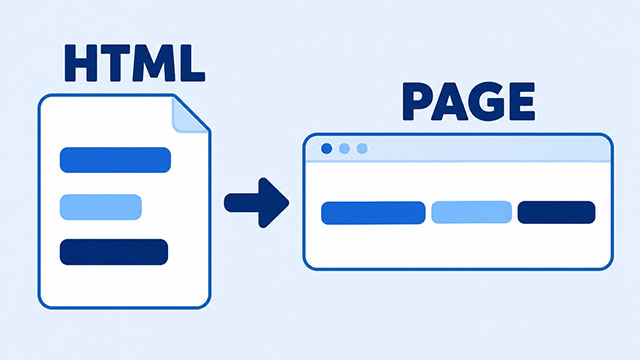
If you press Enter while writing HTML but the text stays together on the webpage, that’s usually expected. In ordinary paragraph text, a new line in your code normally acts like a space. To start a separate paragraph or deliberately break a line, you need to tell the browser which change you mean.
The useful distinction is between the file you edit and the page someone reads. You can arrange the code over several lines to make it easier to work with. The browser doesn’t treat that arrangement as instructions to display the same lines.
Start by asking what you want the reader to see: a separate paragraph, or a new line within the same piece of text. Those need different instructions.
The Lines in Your File Aren’t the Lines on the Page
Spaces, tabs, and the breaks made by pressing Enter are often called whitespace. In ordinary paragraph text, several of these together usually display as one space between words. MDN shows this behavior in its HTML whitespace example.
Here, the two sentences sit on different lines in the code, with a blank line between them. Notice that they are still inside one pair of paragraph tags:
<p>We meet on Saturday.

Bring a notebook.</p>
The page shows “We meet on Saturday. Bring a notebook.” as one paragraph. The blank line in the file doesn’t create a blank line on the page.
If there isn’t enough room across the page, the browser moves some words onto the next line. That is automatic text wrapping. Make the browser window narrower and the words may wrap in a different place, without any change to the HTML.
This describes normal paragraph behavior. Some HTML elements and CSS settings preserve typed line breaks, so it isn’t a rule for every kind of text on a website. MDN’s whitespace guide explains that distinction.
Use Separate Paragraphs for Separate Ideas
If the meeting information and the reminder should be separate paragraphs, give each sentence its own tags. The opening <p> starts a paragraph, and </p> ends it:
<p>We meet on Saturday.</p>
<p>Bring a notebook.</p>
With the browser’s default appearance, the second paragraph starts on a new line with space between paragraphs. The tags make them separate paragraphs; adding a blank line between those two lines of code wouldn’t make them more separate.
A website’s CSS—the rules that control its appearance—can change that spacing. A visible gap isn’t the definition of a paragraph. MDN’s paragraph reference explains the element and its styling.
The HTML Paragraphs lesson gives you a place to practice this grouping. Use it to check where one idea ends and another begins.
Use a Line Break When the Line Ending Matters
Sometimes the words belong together, but a particular line ending matters. A short poem is one example. The <br> tag requests a line break without starting a separate paragraph.
In this two-line poem, put the break immediately after the first sentence:
<p>Rain taps on the window.<br>
Wind moves through the trees.</p>
“Wind moves through the trees.” starts on the next displayed line because of <br>. Removing only the Enter-key break from the code would leave that visible break in place.
The <br> tag has no closing tag; don’t add </br>. MDN’s line-break reference describes its use for text such as poems and addresses.
Use paragraph tags for separate paragraphs. Repeating <br> to create a gap may look similar, but it doesn’t mark the text as separate paragraphs.
Check What Kind of Break You Need
Before adding more line breaks, choose the result you need:
- A separate idea: start another paragraph with its own
<p>and</p>tags. - A meaningful line ending: use
<br>within the paragraph. - An ordinary sentence: let the browser wrap it to fit the available width.
- A larger gap: if the paragraphs are already separate, continue to CSS Margin to learn about spacing around them.
Try the first example in the code sandbox on the HTML Paragraphs lesson. Add another blank line between the sentences and predict the result before updating the preview. Then replace it with the second example and compare.
If you’re editing a local HTML file, save and refresh after each change. Watch which edit actually separates the text on the page: changing where you press Enter, or changing the paragraph tags.
What to Learn Next
Use the lessons below to keep practicing text grouping, then move on to the page around it.
- HTML Paragraphs explains how to group related sentences and lets you compare the result in the lesson’s demo.
- HTML Structure shows where paragraphs and other visible content belong within a page.
- CSS Margin explains how to create room around content when you’re ready to adjust paragraph spacing.