
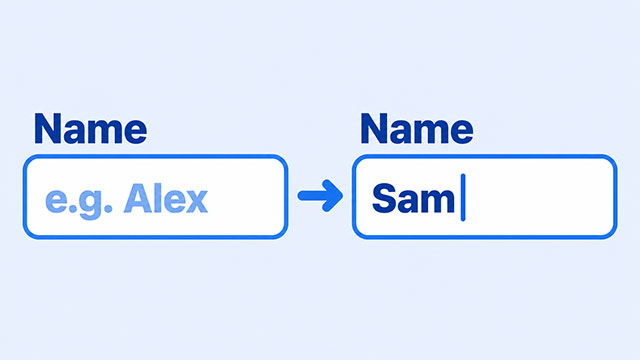
Text inside a field can be a hint or an actual answer. A hint appears while the field is empty and disappears when it contains text. A starting answer is already filled in and can be edited. Here’s how to tell the difference and choose the right one.
In HTML, placeholder supplies the hint. For a text field, value supplies the starting answer. Both can put words inside the same box, which makes them easy to confuse.
The useful check is whether the field contains an answer, rather than whether you can see words inside it. You can test that by typing and clearing the text.
A Hint and an Answer Can Look Similar
Imagine a name field showing “e.g. Alex.” That example tells you what belongs there, but the field is still empty. You don’t have to delete the example before entering your name.
Now imagine a field already filled with “Sam.” That text is editable contents. You can keep it, change part of it, or select it all and replace it. MDN’s input value documentation describes the HTML setting as the initial value.
A label does a third job: it names the field, such as “Your name.” Keep that text outside the field so it remains visible while someone types.
Compare Two Text Fields
Try this in the HTML practice area of the HTML Inputs lesson. The first field has an example hint; the second has a fictional practice name already filled in.
Each input creates a field, and type="text" makes it accept a line of text. Each label’s for matches its field’s id, connecting the label to that field. The name identifies the field if it is later used in a submitted form.
<p>
    <label for="hint-name">Your name</label>
    <input type="text" id="hint-name" name="hint-name" placeholder="e.g. Alex">
</p>
<p>
    <label for="starting-name">Practice name</label>
    <input type="text" id="starting-name" name="starting-name" value="Sam">
</p>
In the first field, type your name. The example disappears without becoming part of what you type. In the second, select and replace “Sam.” Simply typing there may add letters to the existing text, depending on where you place the typing cursor.
Settings such as placeholder="e.g. Alex" are called attributes. They go inside the opening tag. The HTML Attributes lesson explains that name-and-quoted-text pattern.
Why Your Placeholder Is Not Showing
You can put both attributes on a text input. If you give it a nonempty starting value, the hint stays out of view. This example starts with “Sam,” even though a hint is also written in the HTML.
<label for="display-name">Display name</label>
<input type="text" id="display-name" name="display-name"
    placeholder="e.g. Alex" value="Sam">
The two pieces of text aren’t combined. The field shows its contents. To see the hint, make the field empty:
- Select “Sam” inside the field.
- Delete the selected text without typing a replacement.
- Click somewhere outside the field and look for “e.g. Alex.”
The returning hint does not refill the field. It is an example shown in an empty space. MDN’s placeholder reference explains that distinction.
Don’t use clicking alone as the test. The HTML Standard allows differences in whether a browser shows a hint while an empty field is selected for typing. Clear the text and move away from the field before comparing.
Choose the Text That Matches Your Purpose
Use placeholder for a short example, such as “e.g. Alex.” Use value when a field should start with an answer the person can keep or edit. Avoid putting an example name into value on a real form if you expect people to enter their own names.
Keep a visible label in either case. Someone who has started typing still needs to know what the field is for. A disappearing example cannot provide that persistent reminder.
There is also a practical difference when a form is submitted: a named, enabled text field contributes its current contents, not its hint. If the person replaces “Sam,” the replacement is the answer. Placeholder text never becomes the answer just because it is visible. MDN’s text-input guide covers named fields and their submitted contents.
These practice examples only show field behavior. They don’t submit or save information.
What to Learn Next
Use the same type-and-clear experiment while working through the input examples, then revisit how their settings are written.
- HTML Inputs explains fields, connected labels, and how inputs fit into a form.
- HTML Attributes explains how names and quoted settings add information to HTML elements.