
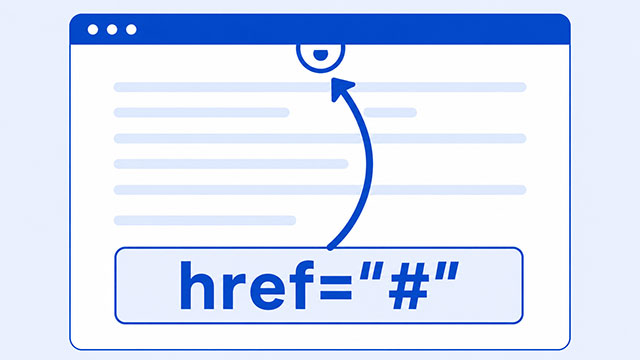
In HTML, href="#" usually means “link to the top of this same page.” Beginners often see it in example code because someone needed a temporary link, but it can make a page jump in a confusing way if you leave it there.
The important idea is simple: href is the destination. It tells the browser where the link should go when someone clicks it.
The # symbol is a page fragment. A fragment points to a place inside a page. When the fragment is empty, as in href="#", the browser commonly treats it as a link to the top of the current page.
That is why a link with href="#" may seem to “do nothing” on a short page, but suddenly jump upward on a longer page.
The Simple Meaning of href
An HTML link uses the <a> element. The letter “a” stands for anchor. The href attribute tells that anchor where to send the user.
Here is a normal link:
<a href="https://example.com">Visit Example</a>The clickable text is “Visit Example.” The destination is https://example.com. If someone clicks the link, the browser tries to go to that web address.
This is the main idea in the HTML Links lesson: a link is not just styled text. It is text, an image, or another element with a real destination.
Good link text also matters. The words inside the link should help people understand where the link goes, even before they click.
What the # Does
The # symbol is used for fragments. A fragment is a pointer to a specific part of a page.
For example, imagine a page has a section with this heading:
<h2 id="contact">Contact</h2>You can make a link that jumps to that section:
<a href="#contact">Go to Contact</a>The link looks for an element with id="contact". If the browser finds it, the page moves to that spot. The destination is inside the same page.
Now compare that with this:
<a href="#">Menu</a>There is a #, but there is no section name after it. That empty fragment usually points to the top of the page.
So href="#contact" has a clear target. href="#" is more like an unfinished or placeholder target.
Why Beginners See href=”#” in Example Code
You will often see href="#" in templates, demos, navigation examples, and copied snippets. Usually, it means the author wanted the item to look like a link before the final destination was ready.
For example:
<nav>
    <a href="#">Home</a>
    <a href="#">Projects</a>
    <a href="#">Contact</a>
</nav>
This code creates three clickable links, but none of them has a finished destination. They may all jump to the top of the page when clicked.
That is fine for a quick mockup if you understand what is happening. It is not a great habit for a finished project because it can feel broken or surprising to the person using the page.
It can also make testing harder. A link that looks complete but goes nowhere is easy to miss unless you click through the page carefully.
When to Use a Real Link Instead
If clicking should take the user somewhere, use a real href.
That destination could be another page:
<a href="/projects/">View My Projects</a>It could also be a section on the same page:
<a href="#contact">Contact Me</a>Both examples have clear navigation. The first link goes to a page. The second link goes to a section. A person can click either one and understand what happened.
This is where links connect to inline elements. A link often sits inside text or navigation without starting a whole new block by itself. It is part of the content, but it still needs a meaningful target.
When to Use a Button Instead
A link should usually navigate. A button should usually perform an action on the current page.
Use a link when the user should go somewhere:
<a href="/about/">About This Site</a>Use a button when the user should do something:
<button type="button">Open Menu</button>That difference is not just about code style. It affects user experience. If something looks clickable, people expect it to behave in a clear way. A fake link can make a site feel unfinished, especially when it jumps to the top of the page.
A simple question helps: does this click move the user somewhere, or does it change something right here?
- If it moves the user to another page, file, email address, phone number, or page section, use a link.
- If it opens a menu, closes a panel, submits a control, or changes the current interface, use a button.
You do not need to memorize every edge case right away. Start with that navigation versus action test.
A Quick Check Before You Keep href=”#”
Before you leave href="#" in a project, test it like a small quality assurance task.
- Click the link. Does the page jump to the top?
- Check the destination. Should it point to a real page or section?
- Read the link text. Does it clearly describe where the user will go?
- Ask what happens. Is this navigation, or is it an action on the current page?
- Replace placeholders. Change unfinished links before the page is published or shared.
If you are using AI while learning, this is a good place to ask a focused question: “Should this clickable thing be a link or a button?” Then read the answer against your own goal for the page. AI can help you think it through, but you still need to test the behavior.
This is also part of good user experience. A visitor should not have to guess what a click will do. The page should make the next step feel obvious.
The Beginner Rule to Remember
For beginner projects, treat href="#" as temporary code.
If it is supposed to go somewhere, replace it with the real destination. If it is supposed to jump to a section, use the section’s actual id. If it is supposed to perform an action, consider whether it should be a <button>.
That one habit will prevent a lot of confusing link behavior.
What to Learn Next
Once href="#" makes sense, the next step is to understand how links fit into HTML structure, user expectations, and testing.
- HTML Links Summary: learn how anchors,
href, and link targets work together. - HTML Inline Elements Summary: see how links sit inside text and other page content.
- User Experience Summary: understand why clear, predictable interactions matter to visitors.
- Quality Assurance Summary: build the habit of checking links and other site details before publishing.