
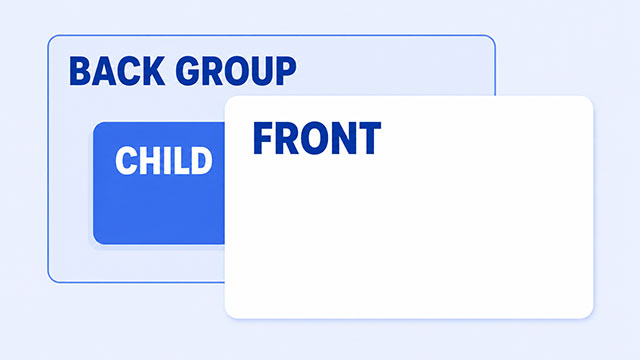
If z-index is not moving an element in front of another one, the two elements may not be competing directly. One element may need a position setting first, or a parent element may be keeping its children together as one group.
That is why raising the number from 10 to 9999 often does nothing. The number matters only after the browser knows which elements are allowed to be compared.
This article will give you a practical way to check the problem. You will look at what overlaps, whether the element can use z-index, and whether a parent element is controlling the front-to-back order.
The Short Answer
z-index usually fails for one of four beginner reasons.
- The elements do not actually overlap.
- The element is still using the default position behavior.
- You are changing a child element when the parent element is the one being compared.
- A parent element has created its own layer group.
The fix depends on which one is happening. The goal is not to find a bigger number. The goal is to find the right comparison.
The CSS Position Summary lesson introduces the position values that matter here. This article focuses on what to check when the code looks reasonable but the page still shows the wrong element on top.
Z-Index Only Matters When Boxes Overlap
Start with the visible page. Are the two elements actually covering the same area?
If they are not crossing each other, z-index may not change anything you can see. It controls front-to-back order, not normal spacing, width, margin, or alignment.
A simple way to picture it is a stack of paper on a desk. If two sheets never touch, it does not matter which one is on top. You only care about the top sheet where the sheets cover the same spot.
On a web page, those sheets are usually boxes. The CSS Box Model Summary lesson is useful because it helps you see each element as a box with size, spacing, and edges.
The Element May Need Position First
For ordinary elements, z-index works when the element has a position value other than the default static. Static means the element is just sitting in the normal page order.
This CSS is a common beginner attempt:
.menu {
    z-index: 10;
}
The number is there, but the element may not be able to use it yet. A small test is to add position: relative;:
.menu {
    position: relative;
    z-index: 10;
}
position: relative is often the safest first test because it keeps the element in its normal place. It simply gives the browser enough information to include that element in layer ordering.
There is one important detail: flex items and grid items can use z-index without adding position: relative. That exception is real, but if you are working with a regular element, checking position first is still a good habit.
The CSS Display Summary lesson helps with this because display controls whether something behaves like a block, inline item, flex item, grid item, or hidden element.
A Bigger Number Cannot Always Escape a Parent
The next problem is less obvious. Sometimes the element can use z-index, but it is being compared inside the wrong group.
Imagine two folders on a desk. Each folder contains papers. You can move one paper to the top inside its folder, but that does not move the whole folder above another folder.
CSS can work the same way. A child element can be high inside its parent, while the parent itself is still behind another parent.
Here is a simplified example:
.card {
    position: relative;
    z-index: 1;
}

.badge {
    position: absolute;
    z-index: 999;
}

.modal {
    position: relative;
    z-index: 2;
}
The badge has a very large number, but it is inside the card. If the card is behind the modal, the badge may still appear behind the modal too.
In that case, changing the badge from 999 to 999999 misses the real issue. You may need to compare the card and modal instead, because they are the parent-level boxes.
Some CSS Properties Create Their Own Layer Groups
A parent element can create a separate group of overlapping elements. In CSS, that group is called a stacking context.
You do not need to memorize every way this can happen right away. For beginner debugging, it is enough to inspect parent elements for a few common clues.
positionwith a realz-indexvalueposition: fixedorposition: stickyopacitybelow1transformvalues such asscale()ortranslate()
These styles can make a parent behave like its own layer group. Children inside that parent are sorted inside the group first. Then the whole group is compared with other groups.
This connects closely to the CSS Presence Summary lesson, which introduces display, visibility, opacity, and z-index as different ways CSS can control whether an element appears and how it sits in front of another element.
A Simple Z-Index Debugging Checklist
When z-index is not doing what you expect, walk through the problem in this order.
- Confirm overlap. Make sure the two elements are actually covering the same part of the page.
- Check position. If the element is a normal static element, try
position: relative;. - Use small numbers. Test
z-index: 1;andz-index: 2;before using huge values. - Compare parents. If the element is inside another box, check whether the parent should be moved in front.
- Inspect parent styles. Look for position, opacity, transform, fixed, or sticky styles on parent elements.
- Change one thing. Make one CSS change, refresh, and observe the result before changing another rule.
This keeps the debugging process calm. You are not trying random numbers. You are finding which boxes compete with each other.
If you use an AI assistant while debugging, ask it to explain which elements are being compared and which parent styles might create a separate group. Then test the answer yourself in the browser. AI can help you inspect the code, but it cannot replace checking the page.
What to Learn Next
Once the layer idea makes sense, these lessons will help you understand the related CSS pieces in a more complete way.
- CSS Position Summary explains static, relative, absolute, fixed, and how positioned elements can use
z-index. - CSS Presence Summary connects
z-indexwith display, visibility, and opacity so you can compare different ways elements appear or layer. - CSS Display Summary shows how elements behave before they start overlapping or stacking.
- CSS Box Model Summary helps you picture each element as a box with size, spacing, and edges.